Using Alara Code
The architecture picture
How a project is built, as a picture in the Architecture tab: what is proven, what an AI read, and how to analyse.
18 min read4 sections
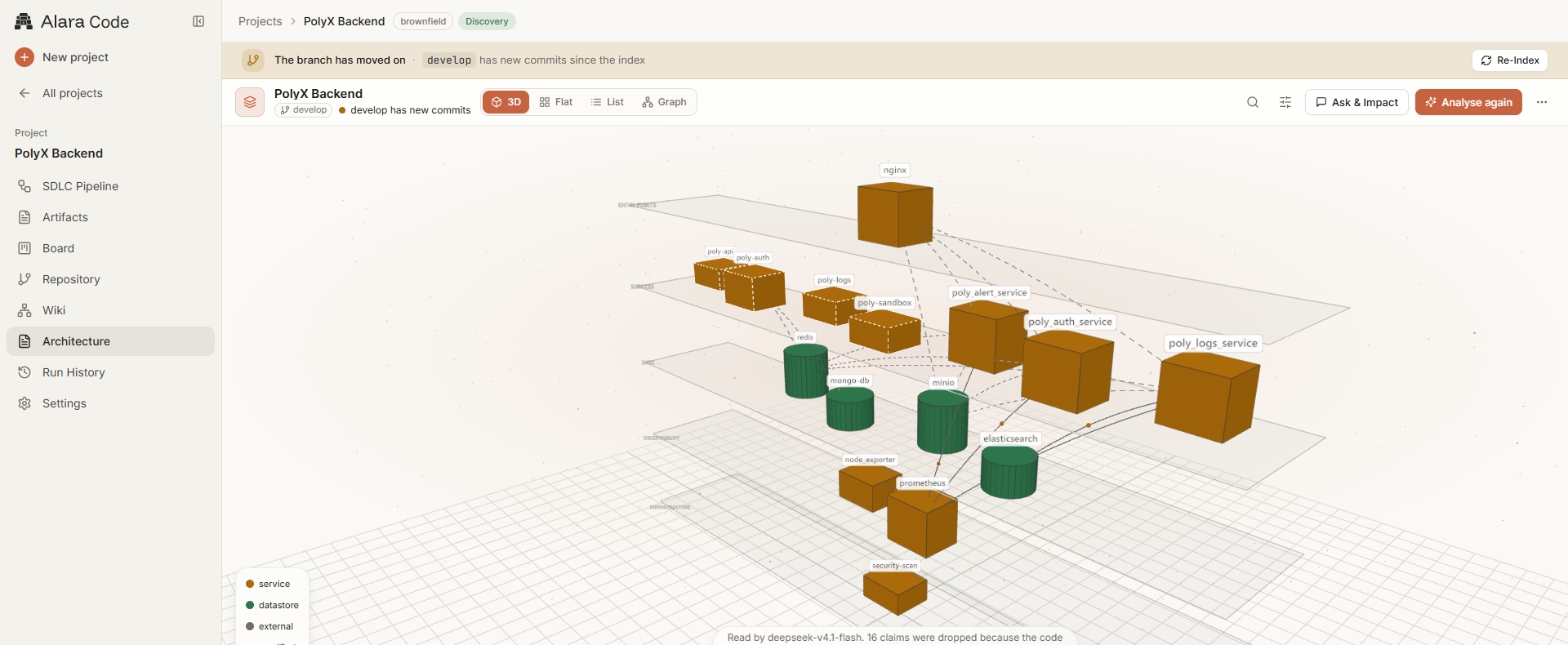
The Architecture tab shows how a project is built, as a picture. Every project has the tab, whether it is a new system or an existing one.
alara-code · Architecture
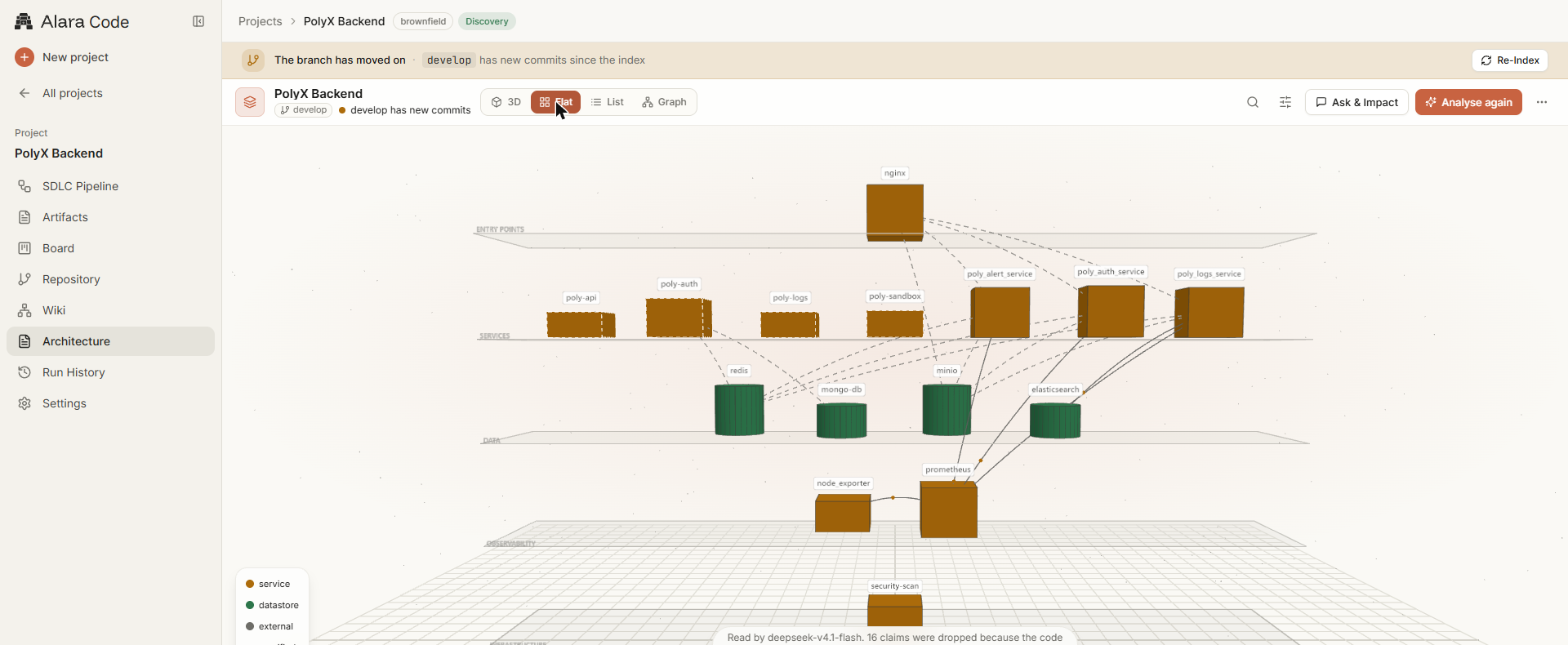
alara-code · Architecture, Flat
What you see
- The tab is the picture. The 3D fills the whole page, and everything else floats over it as glass: one slim bar at the top, the legend and zoom at the bottom, and a block's panel on the right. It is drawn in the platform's colours, so it follows the Light and Dark theme as you switch (a service is the warning colour, a datastore the success colour, an external service the muted colour, a design the info colour).
- One quiet bar. The bar is a single row. On the left are the project's name, its branch, and one small line saying how current the picture is. Next come the views. On the right are Search, Filters, Ask & Impact and More. Everything else is one press away, so nothing is stacked on top of the picture:
- Search is an icon until you want it. It opens in place, lists the blocks that match as you type (name, kind and layer, closest first, at most eight; arrows, Enter and Escape work), and closes again when you press Escape or leave it empty. Choosing one flies to the block and opens it on its Files tab. Blocks hidden by Only verified are not offered.
- Filters holds Only verified and the file lens. A dot on the button tells you when one of them is on, so a hidden filter is never a surprise.
- More says what the picture is made from (what it shows, the branch, the commit it was read at, where it comes from) and holds Auto-update and the Analyse button.
- Analyse comes out onto the bar only while the picture needs it: it was never drawn, the branch has moved on, or the last update failed. Otherwise it waits in More.
- Four views of it:
- 3D turns slowly on its own. Drag to rotate it, use the arrow keys, the + and - buttons or Ctrl and the mouse wheel to zoom, and Reset view to come back.
- Flat is the same scene seen from the front, so you can read the layers one above the other. Drag it and it turns into 3D.
- List names every part, what it depends on and what uses it. It is the text version of the picture, so it works with a screen reader, and it is what you get if your browser cannot show 3D.
- Graph (existing systems, and new systems once their repository holds code) is the repository's map of files, drawn inside this page. See Graph view below. It does not need 3D.
- Click a block (or a name in the list) to open its panel. The camera moves to it, the parts a change to it would affect light up in rings by distance, and everything it does not touch is blurred and darkened so the block, what it affects or needs, and its files stay sharp. Its files rise out of it as an aligned grid of cards, three across, each with the file name on the first line and its folder and kind on the second; a long name is cut in the middle so the extension stays visible. The panel has an Overview, its Files, its Impact (how risky a change is, a radar of what is affected, and the line in the code that links each part) and its Relations. Press Escape or the close button to leave it.
- Read a file's code. The Files tab lists every folder and file the code index holds for the block, as a tree you can open, close and filter. Click a file there, or a file tile on the stage, to read it in the panel: line numbers, colours for the language, Copy, and Back to files (Escape does the same, and a second Escape closes the panel). The text is the file as it was at the commit the picture was checked against.
- A file that exists to hold a secret (
.envfiles, keys and certificates,.npmrc,credentials, Terraform state) is never shown. In every other file, obvious secrets (passwords in URLs, quoted passwords and tokens, cloud and GitHub tokens, private keys) are replaced with<redacted>and counted at the top. This is pattern based, so keep real secrets out of the repository anyway. - A long file shows its first 256 KB, a very large one is only described, and a binary file has no text. With sample data there is no repository, so there is no code to read.
- A file that exists to hold a secret (
- Find a block (the search icon) dims every part that does not match what you type. For an existing system, the file lens in Filters dims every part that does not have, say, a Dockerfile or an nginx config.
- Only verified (in Filters, for a built picture) hides anything the system could not prove from the code.
- Search and Filters apply to 3D, Flat and List. The Graph has its own search, and the bar leaves them out there.
Solid blocks and lines are proven. Dashed ones are not: a part or a link that an AI read from the repository without a rule behind it is marked AI-read, and a part of a design that is still a draft is marked Draft. The legend on the stage says which is which. If the wiki is running on sample data, a banner says so, and More shows Sample data as the source.
The words on a block or a line mean this:
| Mark | Meaning |
|---|---|
| verified | The code index's own rules agree with it. It does not mean a person has checked it. |
| AI-read | The AI quoted a file that really contains that text, but no rule backs it. |
| Inferred | A rule found the link, but it is not fully proven. |
| Draft / Deprecated | The design is not approved yet, or the part is marked as on its way out. |
A claim is dropped when it cites no file that passes the check, links to a block that was itself dropped, names a file the evidence did not contain, or repeats another. A wrong port or version drops only that number, never the whole block. The check is lenient about line numbers: a quote counts if it appears anywhere in the cited file, and the line is corrected.
The Analyse button follows the state: Analyse the first time, Analyse again when the picture is ready or behind, Try again after a failure, then Starting and Analysing while it works. If an update fails the freshness line reads The last update failed.
An existing system (brownfield)
The picture comes from the repository once it is indexed on the Repository tab. A new system gets the same built picture, with Analyse, Graph and the chat, once its repository is indexed and holds code (see A new system below).
- Before an analysis, the picture is what the code index found by rules alone: the services, how they depend on each other and the datastores. A line above it says what you are seeing.
- Analyse asks the engine your project is set to (your organization's own AI model on the Native engine, or the project's Alara agent on the Alara engine) to read the repository's configuration (Docker, nginx, compose files, environment names) and describe the system. Every claim must cite a file and a line, and the system checks each citation against the text it sent. Claims it cannot find are dropped, and the tab says how many: at the foot of the picture it reads, for example, Read by the model or agent. 16 claims were dropped because the code did not prove them. (or Every claim was proven by the code.)
- When it finishes, the tab shows the checked picture, and More says which branch and which commit it was read from. If the repository has not changed since the last analysis, nothing is asked and nothing is spent.
Keeping the picture current
When anyone pushes to that branch, the system reads the new code and analyses again by itself, and the picture on the tab updates without you pressing anything. The line under the project's name says where it is: Up to date with main, main has new commits, Reading the new code, Updating the picture.
- Auto-update is the project's own switch, in More. Turn it off and the picture changes only when you press Analyse again. It needs the same permission as Analyse (Wiki › Ask › create); without it you can see the switch but not change it.
- Two things can start an update by themselves. A finished index draws the picture whenever the project's switch is on, so pressing Index or Re-Index is always enough. A push to the branch, or the periodic check, only works when your deployment allows automatic analysis (
ARCHITECTURE_AUTO_ANALYSIS). When it does not, the switch's hint reads "After an index, the picture is drawn by itself." - It never spends more than a person pressing the button could: at most one analysis per branch every 10 minutes by default (and a short pause if the AI provider asks for one), one at a time per organization, and nothing at all when the code that matters did not change. The first picture is drawn for you too: once the repository has been indexed (press Index on the Repository tab and wait), a project with no picture yet is analysed without anyone pressing Analyse, and the tab shows it filling in. If auto-update is off for the project, nothing starts and the first analysis is yours to run. While it works, a blue strip shows Indexing, and a note says Index complete. Drawing the architecture picture. when the analysis begins.
- It follows the one branch the code index follows. A push to any other branch, or a new tag, changes nothing.
Setting it up (an operator). The bridge learns about a push from the repository host, and, when automatic analysis is on, also checks every few minutes (ARCHITECTURE_AUTO_POLL_MS, five by default) in case a notification was missed. The check only looks at projects that already have a picture.
- GitHub: subscribe the GitHub App to the Push event. The existing webhook (
/api/webhooks/github) already receives it. - Azure DevOps: for each repository add a service hook (Project settings, Service hooks, Web Hooks, Code pushed) to
<public address>/api/webhooks/azure-devops, with any user name andAZURE_DEVOPS_WEBHOOK_SECRETas the basic-auth password.
Analyse needs the permission to ask the wiki a question (Wiki › Ask › create). Without it you still see the picture and its state, but no button. It is switched off, with the reason beside it, while the repository is not indexed, while it is being indexed, while an analysis is already running, and when there is no model to ask: no AI provider key on a Native project, or no Alara agent bound (or no longer shared with your organization) on an Alara project.
With no model to ask, the picture is the code index alone, and the tab says what to do: add an AI provider key in Settings on a Native project, or bind an Alara agent in Project Settings › Agent on an Alara project.
On an Alara project the analysis runs as you, on the project's agent, so it starts only when you press Analyse. Neither a push nor a finished index starts one on its own (the first picture included), because nobody is signed in to ask the agent; the picture then shows it is behind and waits for you. An analysis is limited to one per branch every few minutes, and one at a time per organization, so a second press may say to try again shortly.
Graph view
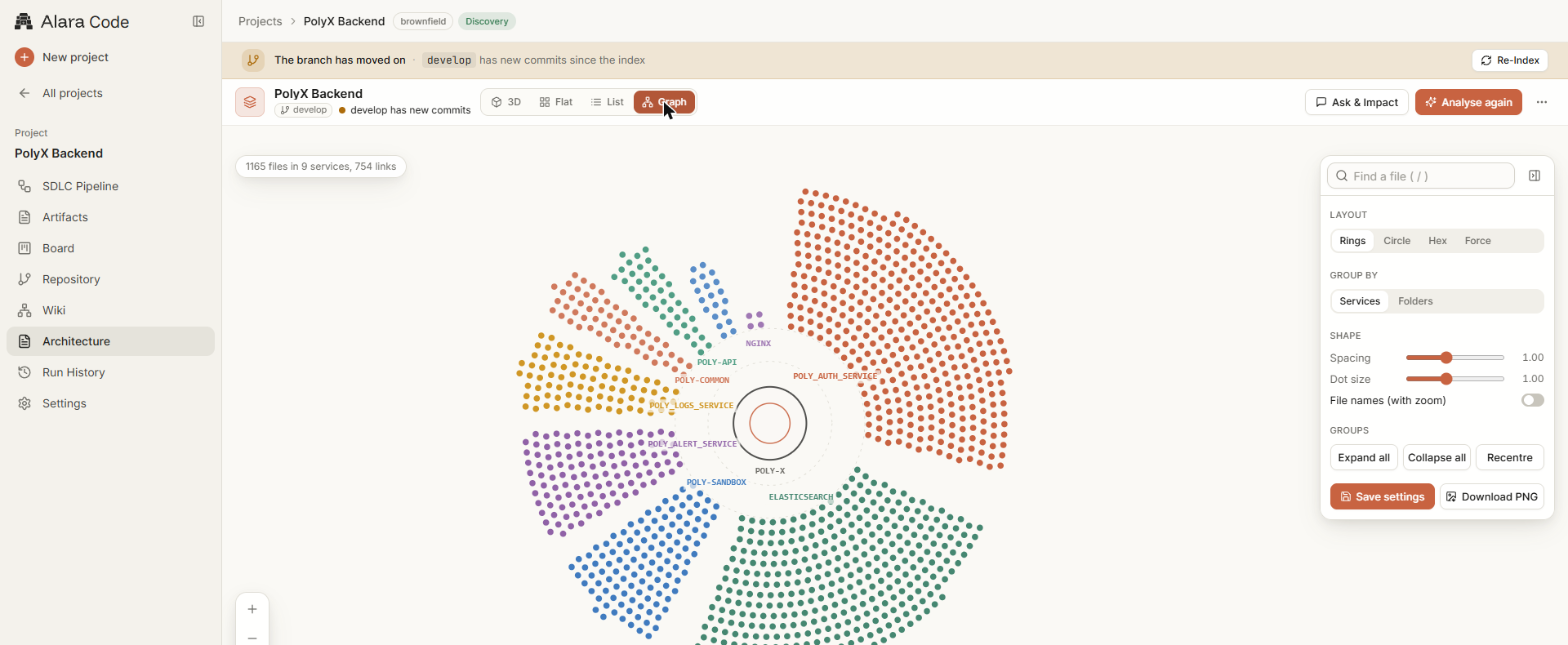
On a built picture (an existing system, or a new system whose repository holds code), Graph is the fourth view in the bar, next to 3D, Flat and List. It shows the repository's graph inside the Architecture page, so you switch to it and back without leaving.
The view opens on a map of the repository: the repository sits at the centre, each service is a coloured group around it, and every file is a dot inside its group. Hover a file to see what it is connected to; the lines are drawn in its group's colour and the rest of the map fades. Click a file, a folder or a service to read about it, and press Check impact to ask what a change to it would touch.
Check impact does not leave the page. It opens the Ask & Impact chat on Impact and sends the question to the agent for you, as if you had typed it. A file or a function is tagged by name, so the code index finds who calls and imports it and the answer comes with the full impact card. A folder or a service is named in words only, so its answer rests on the architecture and the agent's reading, without the card. If the agent is still writing an answer, the question waits in the box for you to send. You need the permission to ask the wiki a question (Wiki › Ask › create); without it the button says why it is off.
The panel at the right controls the map:
- Find a file searches the files, ringing the matches and centring the first. Press
/to jump to it, and Esc to clear it. - Layout is Hex (each group in a hexagonal cell, the layout the Graph opens on), Rings (groups as wedges around the centre), Circle (groups spaced round one circle) or Force, the original free-floating graph with its Services, Folders, Files and Functions levels.
- Group by puts the files under their Services or their top-level Folders. A file belongs to the service whose folder holds it; a repository without services is grouped by folder, and the page says so.
- Spacing and Dot size loosen or tighten the map. File names (with zoom) writes each file's name beside its dot once you have zoomed in far enough.
- Collapse all folds every group into one disc, Expand all opens them again, and Recentre fits the whole map in view. Clicking a folded group opens it.
- Save settings keeps the layout, grouping and sliders in this browser, so the page opens the same way next time. Download PNG saves the map as an image.
Drag to move the map and scroll to zoom. The colours follow the platform's Light and Dark theme.
Two notes can appear over the map. File structure only means the repository is in a language the index cannot follow yet, so the map shows files and folders without calls between them. The graph changed means a newer index no longer has the file you had open: the selection is cleared and the map reloads. The map reads the repository's index, so a stale or missing one is fixed on the Repository tab.
alara-code · Architecture, Graph
Ask and Impact
On a built picture (an existing system, or a new system whose repository holds code), the Ask & Impact button in the header opens a chat beside the picture. It is for questions about the repository, and for what a change would touch.
- Ask answers a question about the repository. The answer names the files it relies on, so you can open them.
- Impact takes a change you describe. The code index finds who calls and imports what you change, and the answer shows that as a card (what is proven and what is inferred) with an explanation written by the agent. Check impact in the Graph view sends one of these for you.
- Tag files with @. Type
@and a few letters of a file name to list up to ten matching files. Use the arrow keys, then press Enter or Tab to pick one. A tagged file is read and sent with the question, up to eight files per question, and a question can be up to 4,000 characters.
The chat is answered by the same engine that drew the picture: the Alara agent bound to the project, or the organization's model. It starts from the architecture it drew, remembers the earlier turns of the conversation, and reads the files you tag. Ask also adds up to three files the index finds for the question when you tagged fewer than three; Impact adds none, and uses the index's own blast radius for its card.
The answer appears as it is written, not all at once. If the live connection drops, the chat falls back to showing the finished answer a moment later.
The conversation is yours alone. Other people on the project do not see it, and it is kept apart from the project chat. It is stored in the Alara Code database, not in your browser, and only your last 10 questions, each with its answer, are kept: asking an eleventh deletes the oldest. Code in the repository is treated as data to read, never as instructions, and files that hold secrets are withheld or masked before the agent sees them.
Asking uses the organization's model, so the whole organization can ask 20 questions a minute, shared across every project. If you reach it, the chat says how long to wait.
The chat is on projects with a built picture (an existing system, or a new system whose repository is indexed and holds code), and you need Wiki › Ask › create to see it. Whether the chat is open or closed is remembered in your browser. If the project has no Alara agent bound, a question comes back with This project has no Alara agent bound. Bind one in Project Settings › Agent, then ask again. On a Native project with no model chosen, an administrator has to choose one in Settings › AI providers.
A new system (greenfield)
The picture is the design from the SDS step: each design component is a block, and its dependencies are the lines between them. While the SDS is a draft, the blueprint is dashed; once it is approved, it is drawn solid. Until the design is written, the card says "Design not written yet", and the tab links to the SDLC Pipeline.
Once the project's repository has been pushed to, indexed on the Repository tab and found to hold code, the tab switches to the picture built from that code, with Analyse, the Graph view and the Ask & Impact chat, exactly as for an existing system. If a later index finds no code, it goes back to the blueprint. You never see both at once.
When there is no picture
The tab never shows an error for a missing picture. It shows a quiet placeholder that says why, and says what to do next:
| The tab says | What it means | What to do |
|---|---|---|
| Not indexed yet | The repository is connected but not indexed | Index it on the Repository tab |
| Indexing | The index is being built | Wait; the picture appears when it finishes |
| Indexing failed | The last index did not finish | Open the Repository tab and try again |
| No repository | No repository is connected | Connect one on the Repository tab |
| Code wiki is off | The code wiki is switched off for this deployment | Ask an admin |
| Wiki unavailable | The wiki did not answer | Try again in a moment |
| Design not written yet | A new system has no SDS yet | Run the SDS step |
Names that come from a repository, such as a service called <b>x</b>, are always shown as plain text.